Entra Identity Protection: User Risk & Sign-in Risk
As part of my MS-102 studies, I wanted to gain a deeper understanding of user risk and sign-in risk, even though I had seen these concepts in practice at my MSP. Entra Identity Protection helps organizations detect, investigate, and remediate identity-based risks, especially important for remote teams using multiple devices and networks.
Risky Sign-ins
Risky sign-ins occur when one or more risk detections are triggered. Examples include:
- Impossible travel (e.g., login from London then China)
- Anonymous IP addresses (e.g., Tor browser usage)
- Malicious IP addresses
- Suspicious browsers
- Unfamiliar sign-in properties
Risky Users
A user is marked as risky when they have:
- Leaked credentials detected
- Attempts to access primary refresh tokens
- Entra threat intelligence flags
- Admin manually marks user as compromised (immediately sets User Risk to High)
Configuring Identity Protection
Configuration is done through Conditional Access policies. Note: This requires an Entra ID P2 License.
- Create a New Policy: Navigate to entra.microsoft.com and go to Protection -> Conditional Access -> Policies -> Create new policy. Name it appropriately (e.g., "Finance – Medium / High Risk").
- Select Conditions: Configure conditions based on user risk or sign-in risk: - User risk: Low, Medium, High based on suspicious activity - Sign-in risk: Low, Medium, High based on authentication request signals
- Assign the Policy: Apply to relevant groups (e.g., Finance department for remote and BYOD users)
- Grant Access Controls: Require MFA with additional options like: - Stronger authentication methods - Device compliance checks - Approved client apps - Data protection policies - Password changes or risk remediation
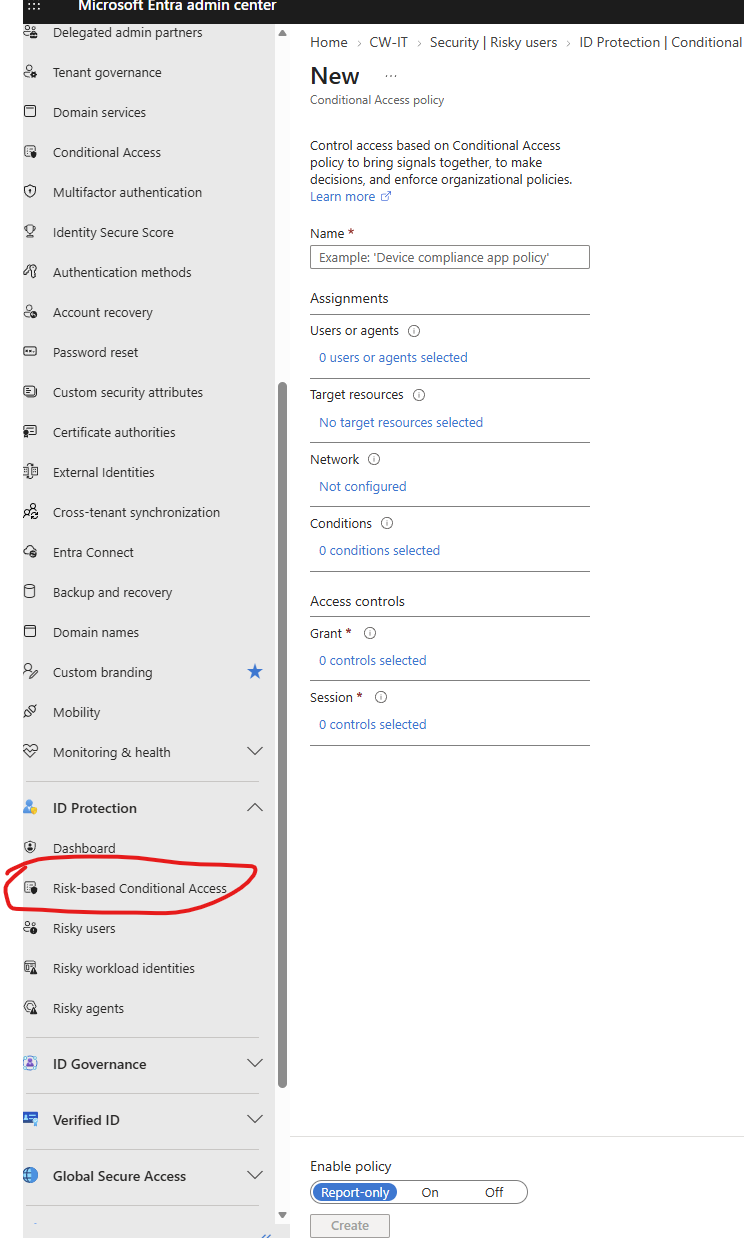
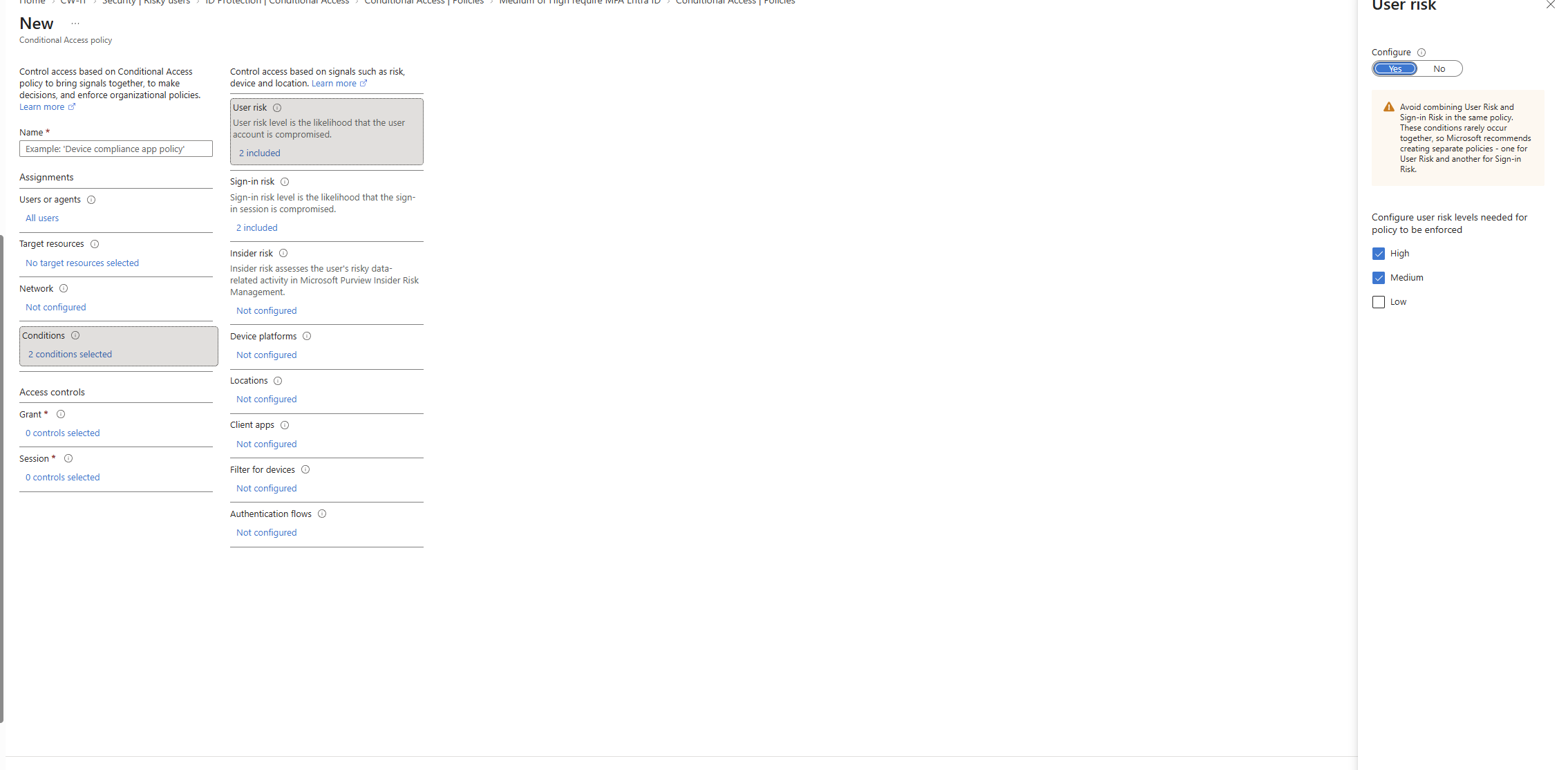
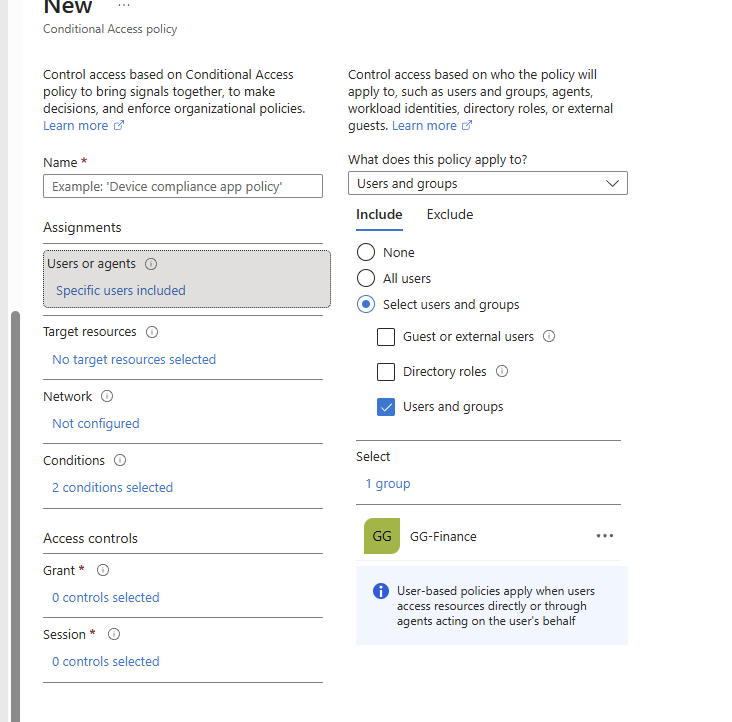
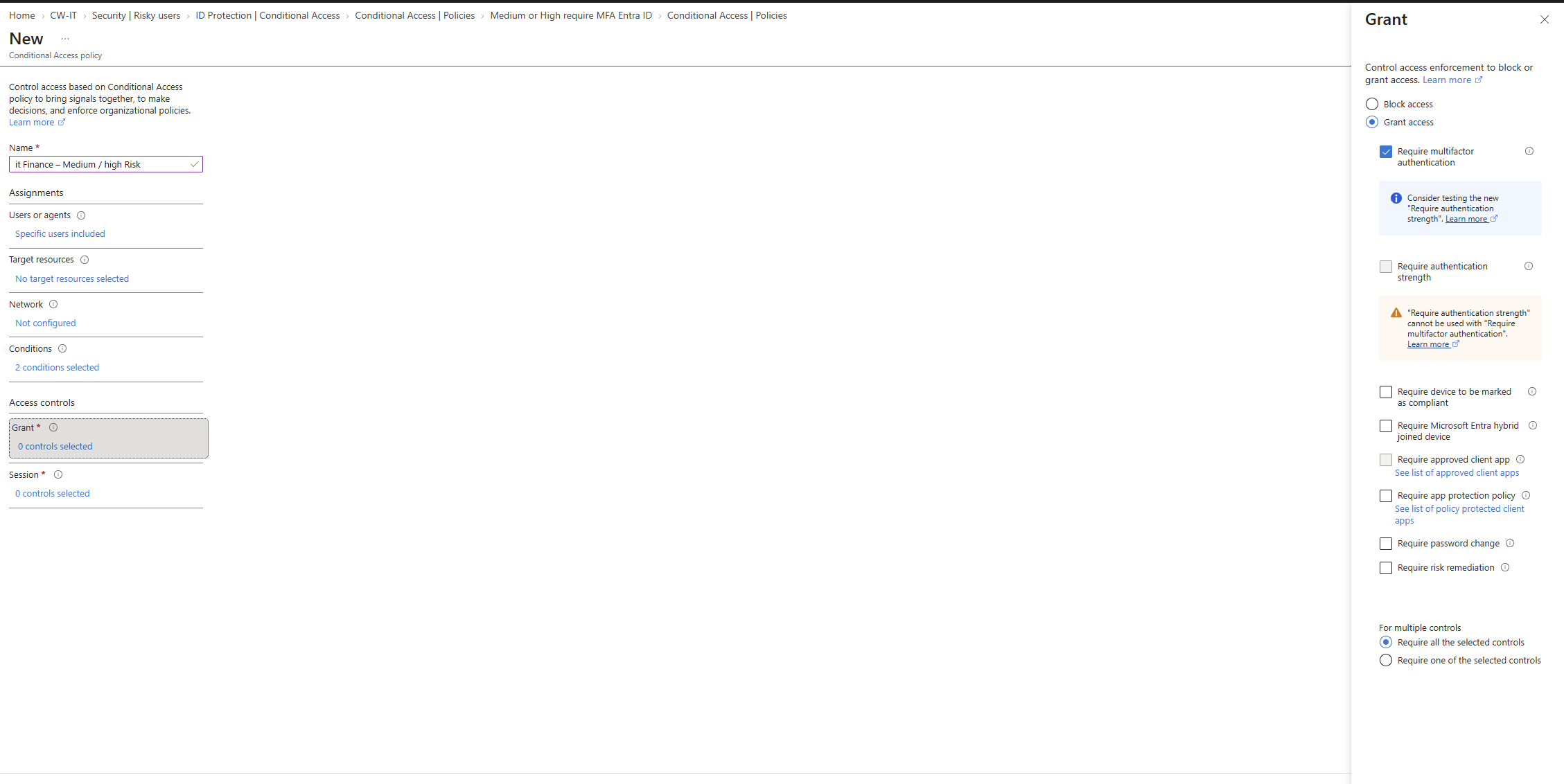
Testing the policy with a test account in the Finance group showed how risk levels are determined. Using a VPN to simulate remote login attempts, we observed Entra's risk detection system flagging activity based on location and sign-in patterns.
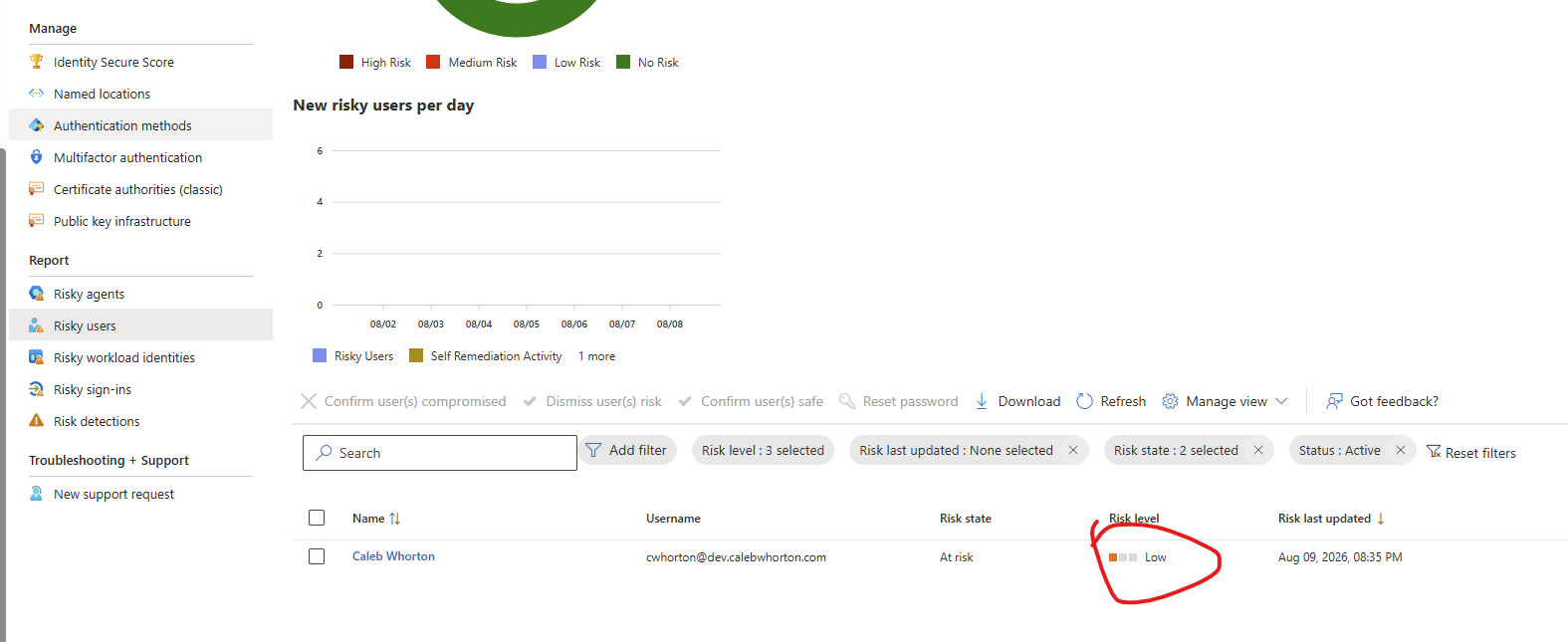
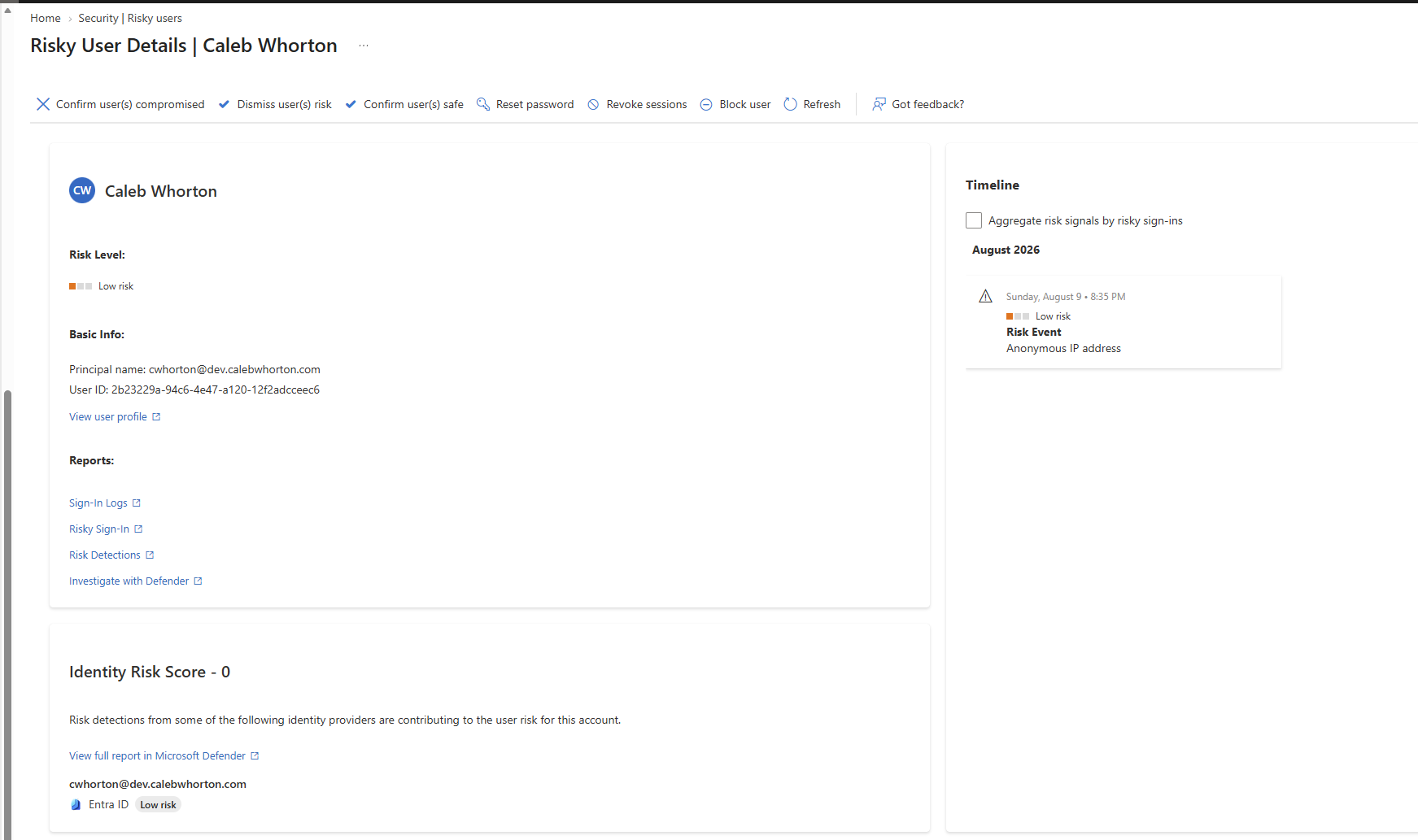
After marking the user as safe in Entra's risk detection system, normal login access was restored. This process demonstrates how to manage and mitigate identity risks effectively.
