Corporate-Owned, Fully Managed Android via Staging
A step-by-step guide showing how to create a corporate-owned Android staging enrollment profile, a device filter, app assignments, and a configuration policy so devices can be pre-provisioned and handed off fully managed.
Objective
Configure an Android device to enroll as corporate-owned and fully managed using staging. This setup enables pre-provisioning by IT or a vendor before the device reaches the end user.
Example scenario
A field technician receives a batch of devices, pre-configures them in Intune, then distributes them to users. Devices are enrolled via staging tokens and provisioned with corporate apps and restrictions, so users start with a secure, managed device out of the box.
What I configured
- Created an Android Enterprise corporate-owned, fully managed enrollment profile
- Built a device filter scoped to the staging enrollment profile
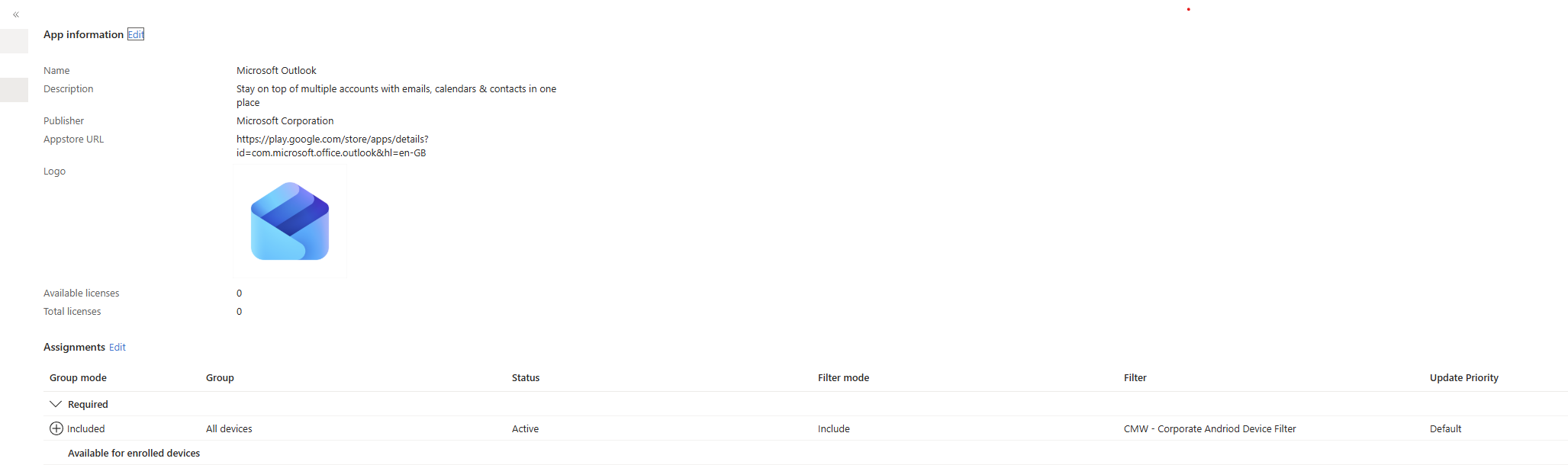
- Assigned Microsoft Edge and additional Android apps using the filter
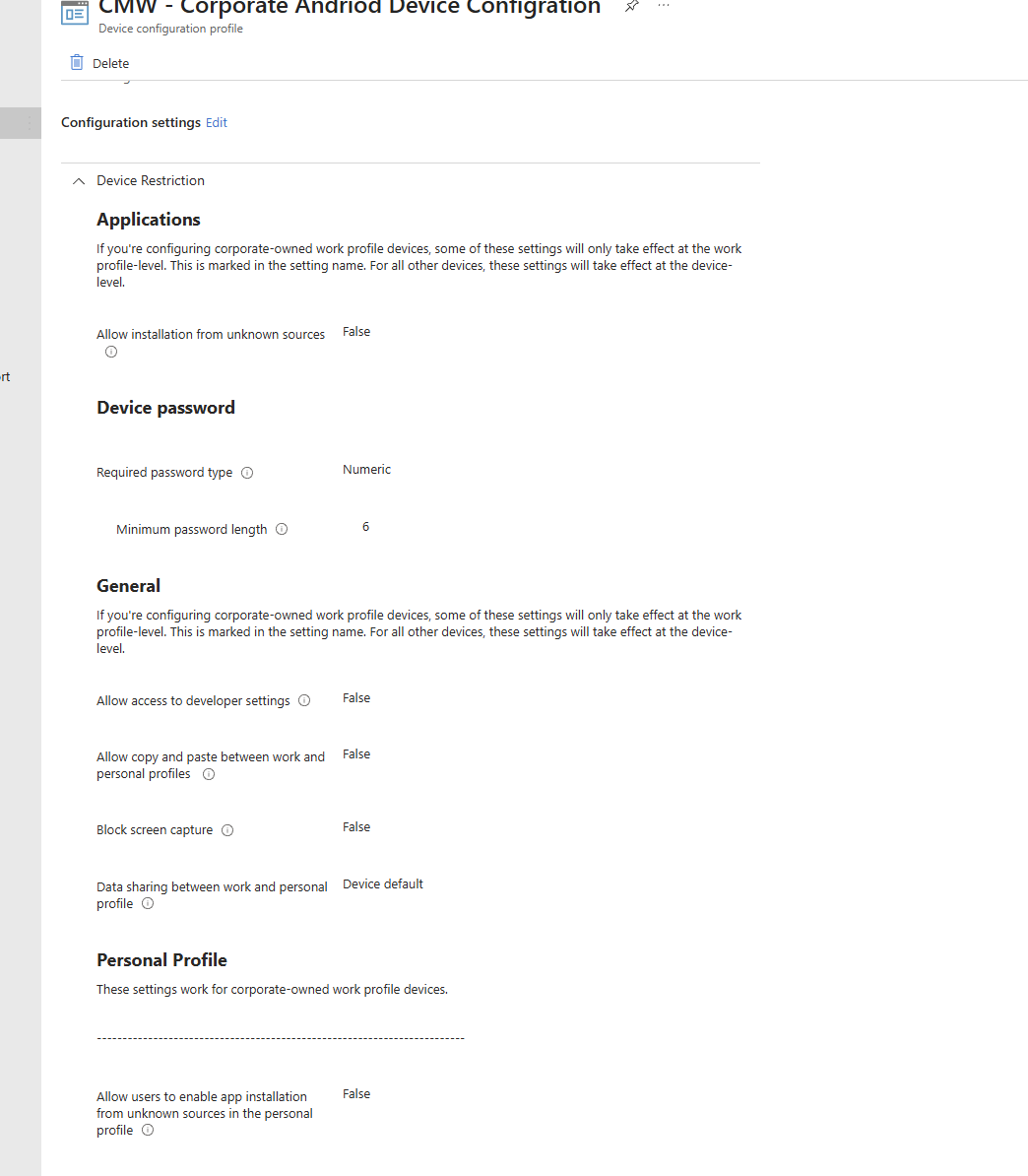
- Created a device restrictions configuration policy for corporate-owned Android devices
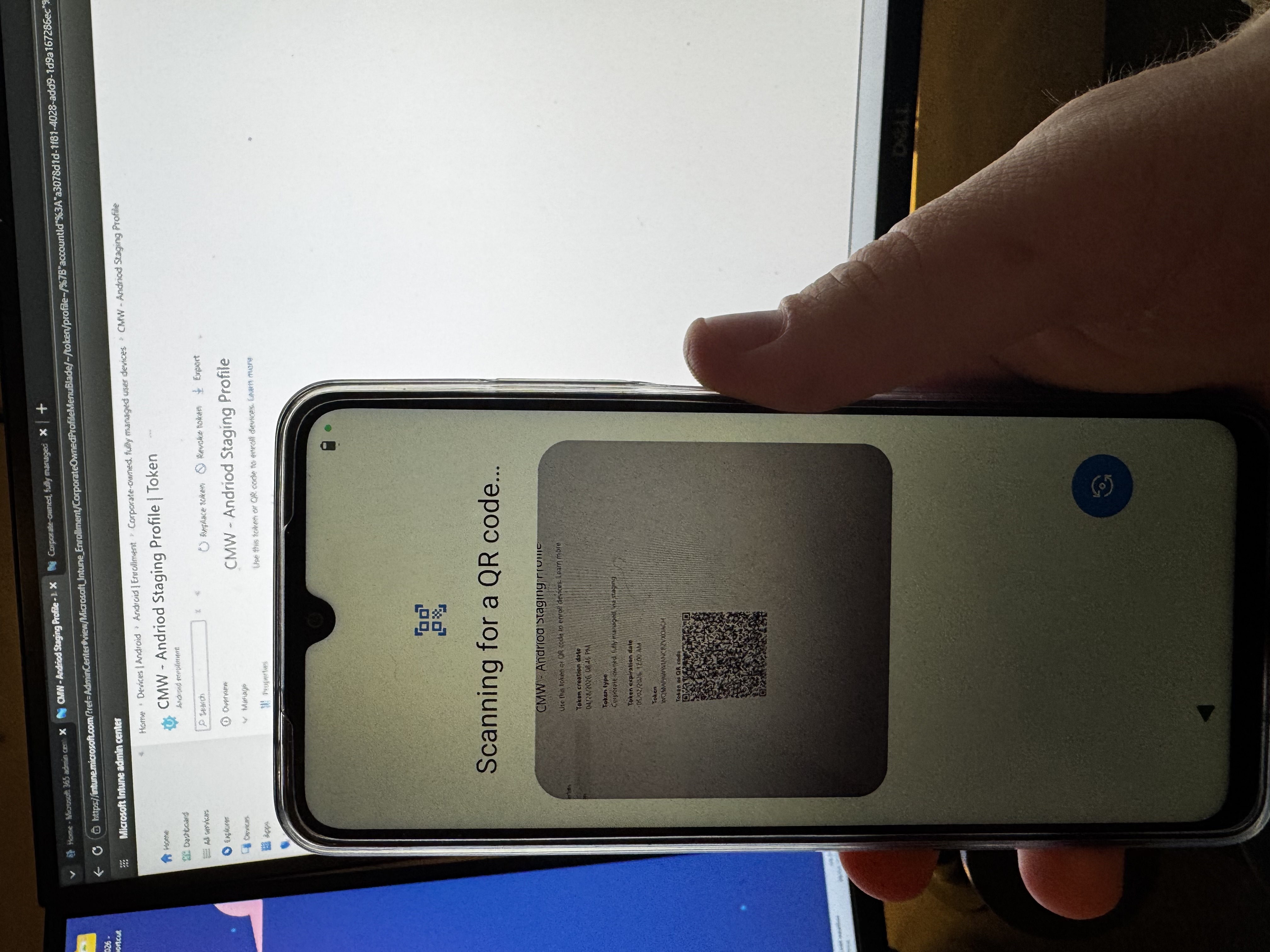
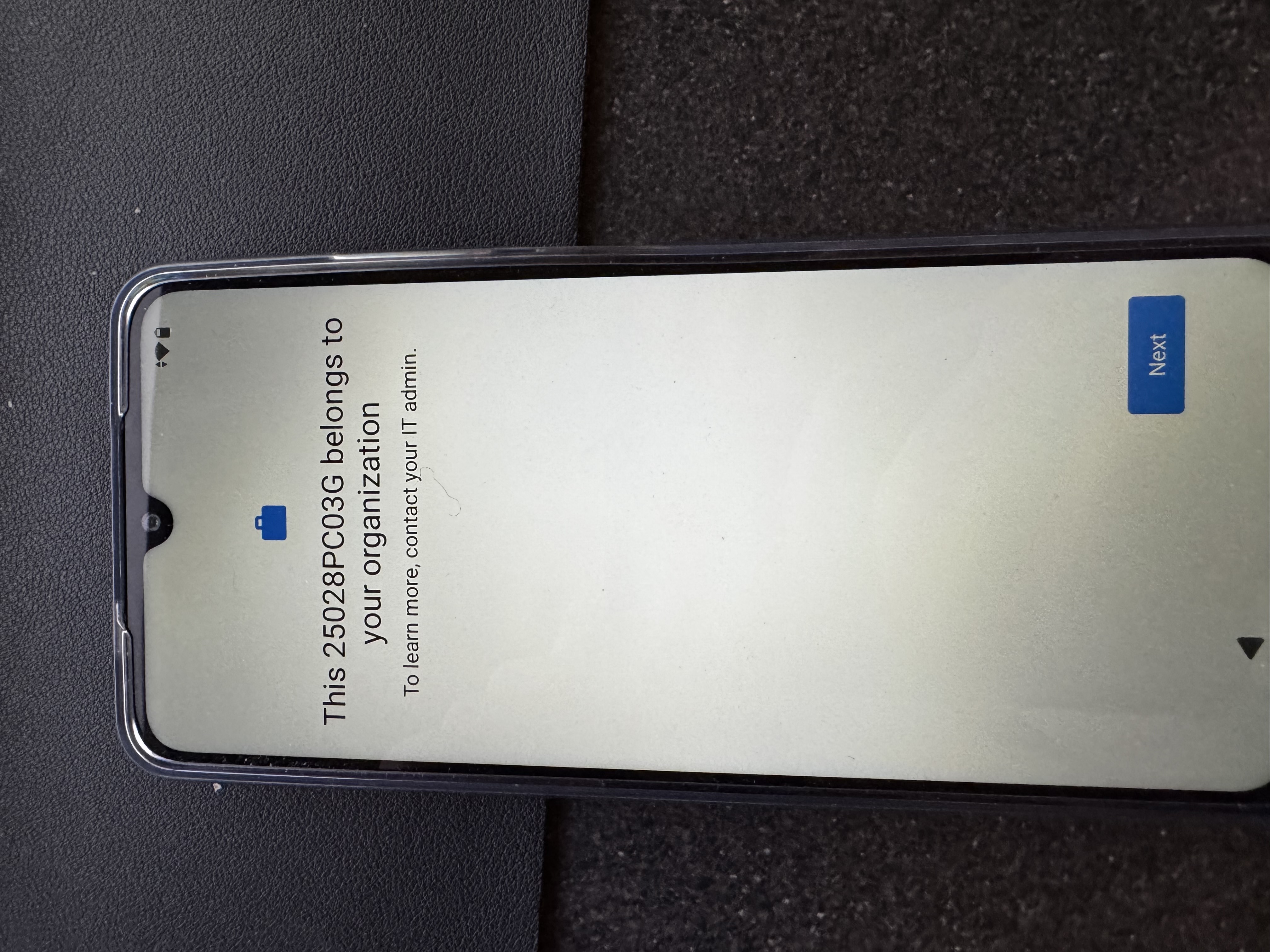
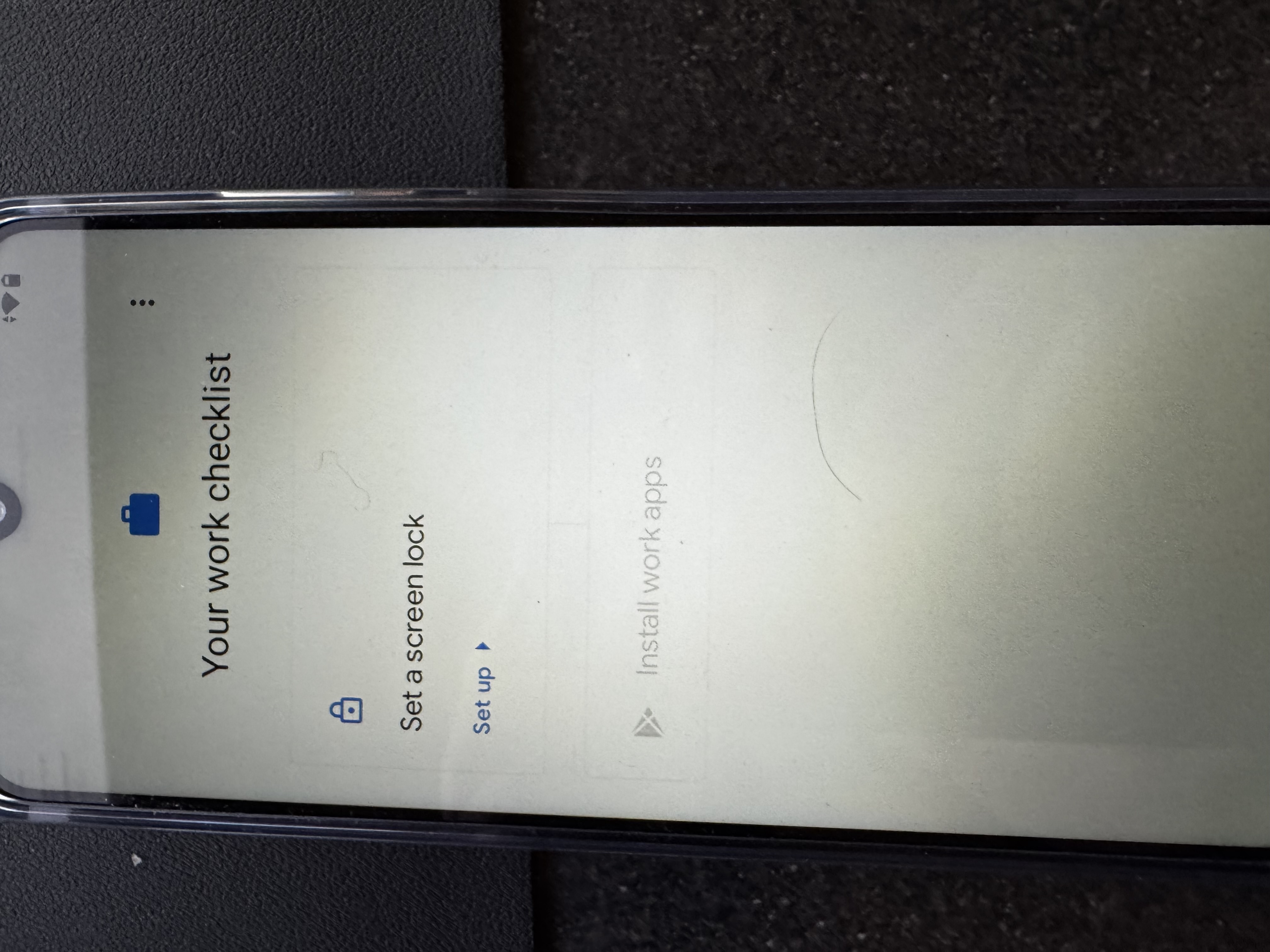
- Verified enrollment using the staging QR code / token flow on a handset
Environment
- Microsoft Intune tenant with Android Enterprise
- Corporate-owned Android device for staging enrollment
- Managed Google Play connected for app deployment
- BYOD app protection group for personal devices
Process
- Navigate to Intune > Devices > Android > Enrollment.
- Select Corporate-owned, fully managed user devices.
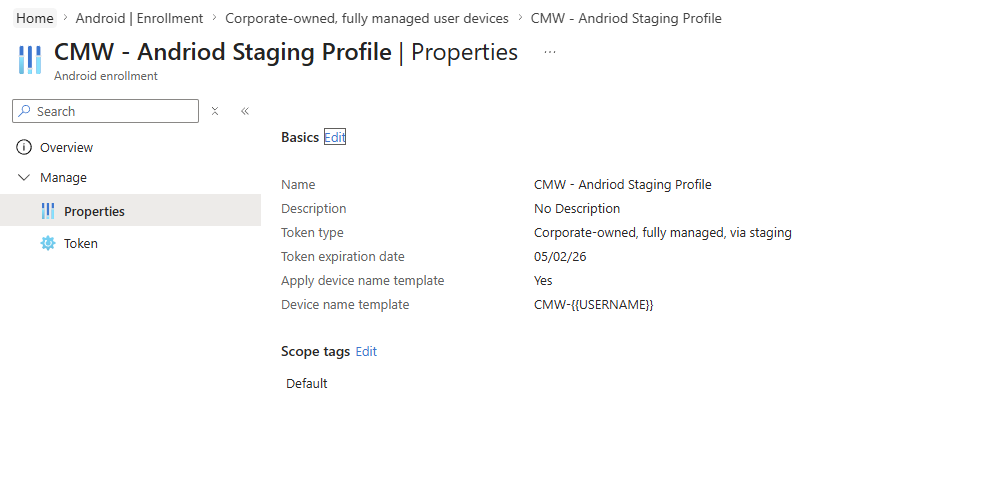
- Create a new profile called CMW - Android Staging Profile.
- Choose token type: Corporate-owned, fully managed via staging.
- Set an expiry date (short-term for testing).
- Set the device name template to CMW-{{USERNAME}}.
- Save the profile and issue the staging token.
Filter creation
- Go to Tenant administration > Filters > Managed devices > Create > Managed devices.
- Name the filter CMW - Corporate android device filter.
- Select Platform: Android Enterprise.
- Add a rule where enrollmentprofilename equals CMW - Android Staging Profile.
- Save the filter so only staging devices receive the corporate assignments.
App assignment
- Navigate to Apps > Android and choose Microsoft Edge.
- Under Assignments, target All Android devices, then apply the staging filter.
- Add two or three more Android apps and apply the same filter.
- For BYOD scenarios, add the BYOD group as Available with or without enrollment with app protection enabled.
Configuration policy
- Go to Devices > Android > Configuration.
- Create Policy > Platform: Android Enterprise > Profile: Settings catalog.
- Name it CMW - Corporate Android Device Configuration.
- Assign the policy to All devices or an appropriate corporate-owned device group.
I did not create a second global Android policy because I already had a corporate Android policy assigned across the tenant.
Enrollment validation
Open the staging enrollment profile, copy the token, and scan the QR code from the Android device setup screen. The device should complete enrollment as a fully managed corporate-owned Android device.
Key lessons
- Staging enrollment is ideal for pre-provisioning devices before handoff.
- Assignment filters keep corporate apps and policies targeted to the right devices.
- Using a device name template helps identify staged devices in Intune.
- Separating BYOD app protection from corporate device assignments reduces risk and improves manageability.
Screenshots